

Payment and invoice reconciliation
All territories
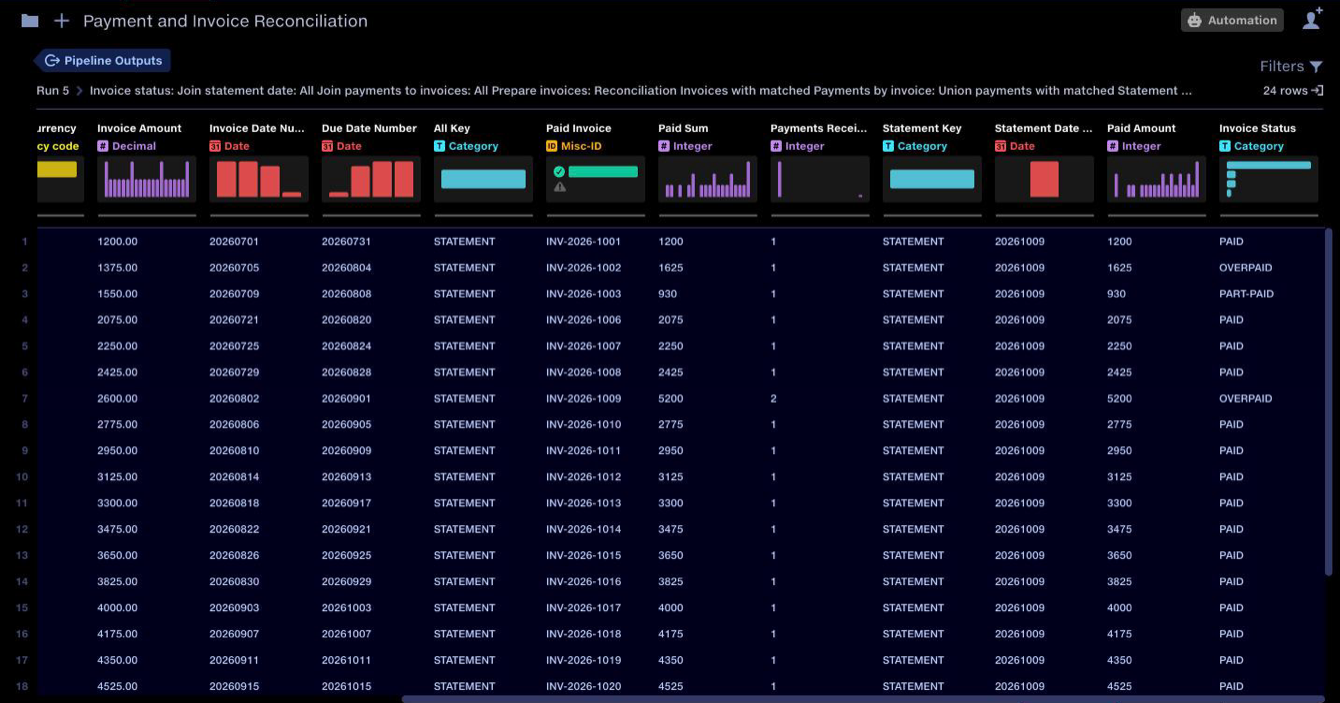
Matches payments to invoices on the invoice reference, gives each invoice a status (paid, part-paid, overpaid or unpaid), and checks both for problems.
Works for any business that invoices customers and receives payments, insurance or not.
- 7validation rules
- 12pipeline stages
- 2 minto build and check
See it in Quantemplate
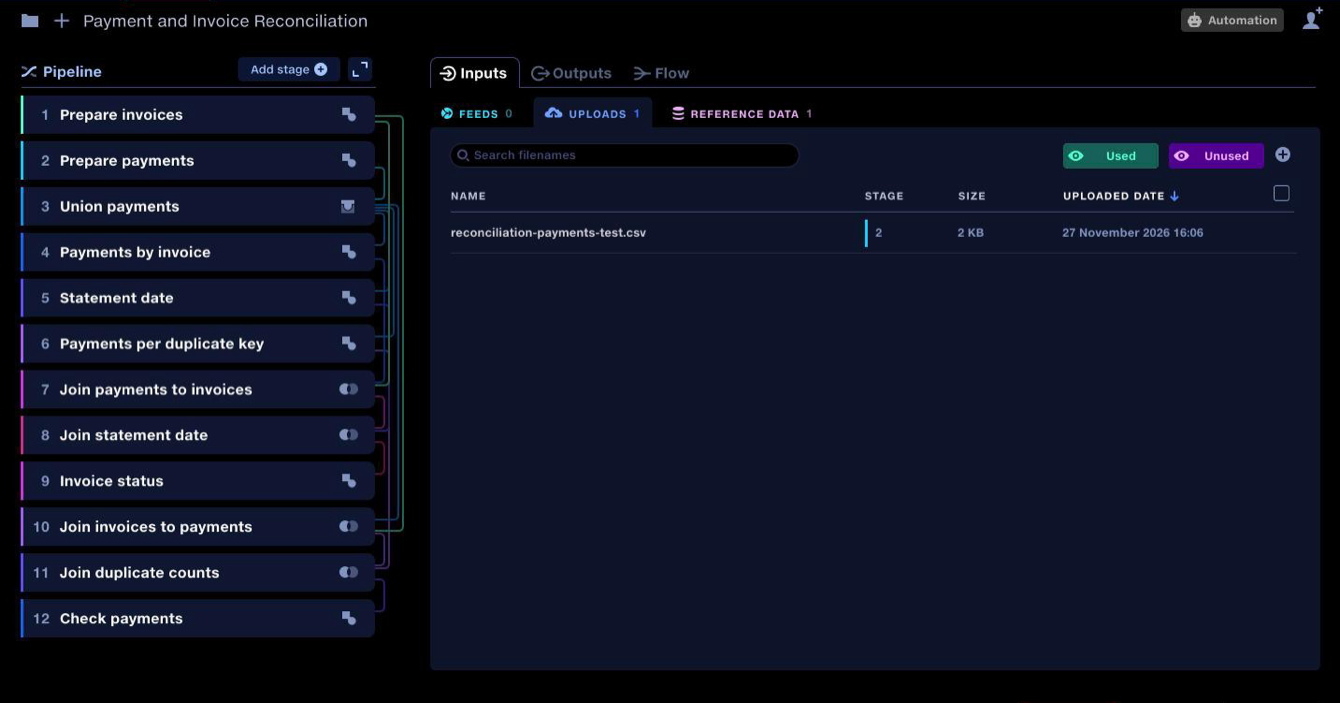
The pipeline
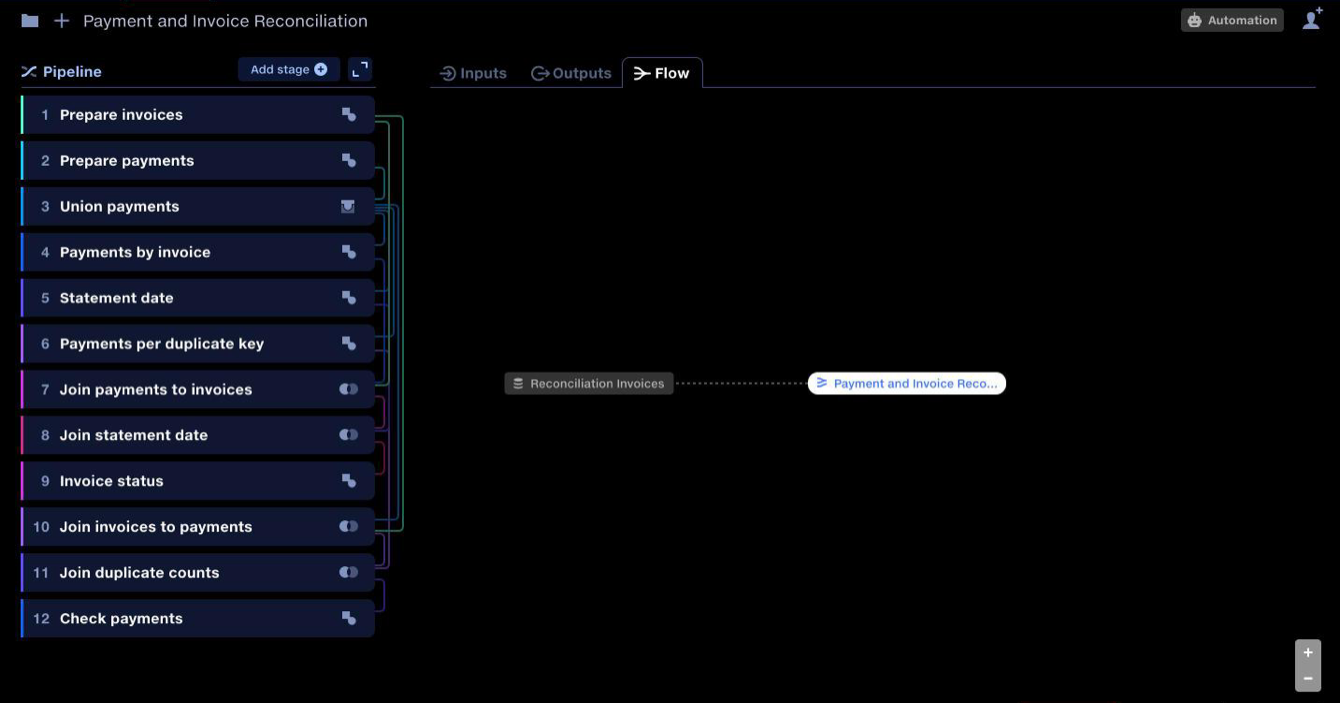
The flow
The checked output
What it checks
7 rules 3 Fail 4 Warning
- InvoicesOverpaid, part-paid and overdue invoices 1 Fail, 2 Warning 3
- PaymentsUnmatched, wrong-currency, early and duplicate payments 2 Fail, 2 Warning 4
A rule set to Fail marks its rows as failed, and any failure blocks Auto Export if you set it up. Warnings are only reported. Validation never removes a row. Every rule and its formula is listed in VALIDATIONS.md in the download.
How the pipeline works
- Stage 1 Invoices Tidy the invoices and turn their dates into numbers
- Stages 2–3 Payments Tidy each payments file and stack them
- Stages 4–6 Totals Payments by invoice, the statement date, and payments per duplicate key
- Stages 7–9 Invoice status Bring payments onto each invoice, work out its status and check it
- Stages 10–12 Check payments Match each payment to its invoice and run the payment checks
What’s in the download
- The 7 checks as JSON, and a table of every check with its formula and notes
- Invoices, and payments files: good, and with payments built to fail each check
- The status each invoice should get
- A Claude skill that builds the pipeline and checks the results
- A snapshot of the finished pipeline and the scripts that build it from your browser
Build it
- Unzip the download and copy the folder in
skillsinto~/.claude/skills/. - With Claude in Chrome signed in to Quantemplate, ask Claude Code:
Build the payment reconciliation pipeline from the payment-reconciliation folder.
- Claude creates the datasets and stages, runs the test data and checks every rule’s result. This takes around 2 minutes.
The agent builds through the Quantemplate app’s own API in your browser. That API isn’t published, so if a release changes it, the build stops and the agent offers to click through the screens instead, which takes much longer. Review what the agent builds before you rely on it.
Using real data
- Replace the invoices with your own, and add your payments files as inputs to stage 2.
- To allocate payments that don’t carry an invoice reference, see Join reconciliation.
Contact the Quantemplate support team, or use your AI agent, to build custom logic for your use case.
Limits
- Matching is on the invoice reference only. Payments with no reference, or the wrong one, are flagged rather than matched by amount or payer.
- Currencies aren’t converted, so a payment in another currency is flagged.
- Each payment pays one invoice. A payment covering several needs splitting first.
- The test data is fictional.
- The build doesn’t set up Auto Run, Auto Export or feeds.
- The agent works through the app in your browser, so changes someone makes in the app whilst it’s working can trip it up.