

Text Cleanse
About Text Cleanse
The Text Cleanse operation tidies text values in the columns you select, so that values that should be the same really are the same. For example, use it to:
- strip out accented and non-standard characters before sending data to a system that doesn’t support them
- make a join point more forgiving, so rows still join when their values differ only in case, spacing or punctuation – for example,
North-Westandnorth west - tidy free-text values, such as names and addresses, before mapping, grouping or validating them
For a forgiving join, apply the same actions to the join point on both sides of the Join. The Join stage can also cleanse join points itself.
Turn on the actions you need:
- Extract ID – pull a detected ID out of the text around it.
- Special characters – replace accented and other non-standard letters with plain-text alternatives.
- Punctuation – replace punctuation and symbols with spaces.
- Alphanumerics – remove everything except letters, numbers, underscores and whitespace.
- Remove whitespace between initials – join initials, so J R R becomes JRR.
- Collapse repeated whitespace – replace runs of spaces, tabs and line breaks with a single space.
- Trim leading/trailing whitespace – remove whitespace from the start and end of each value.
- Case – convert text to lowercase, Sentence case, Title Case or UPPERCASE.
For example, with Punctuation, Remove whitespace between initials and Collapse repeated whitespace turned on,
J. R. R. Tolkien is cleansed like this:
Step | Result |
|---|---|
Punctuation | J R R Tolkien |
Remove whitespace between initials | JRR Tolkien |
Collapse repeated whitespace | JRR Tolkien |
In the examples on this page, marks a space wherever spacing matters.
Select columns
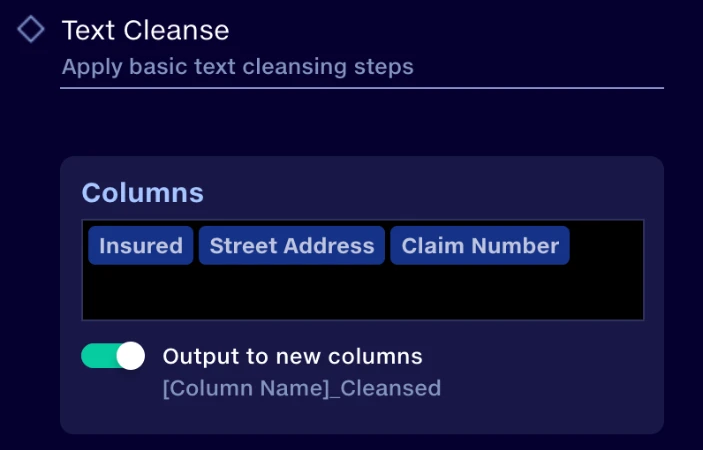
Add the columns you want to cleanse to the Columns panel. The actions you turn on apply to every selected column, except Extract ID, which only applies to columns with a detected ID.
Turn on Output to new columns to write the cleansed values to new columns, named
[Column Name]_Cleansed.
When it’s turned off, the cleansed values overwrite the original columns.
Extract ID
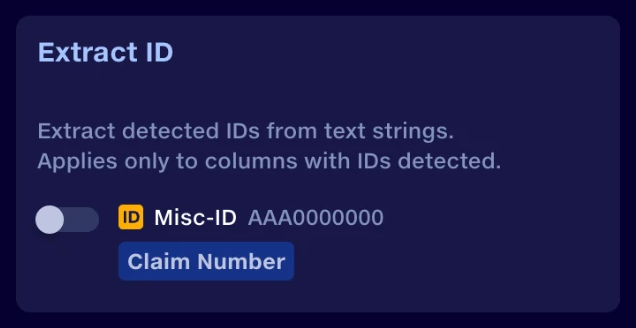
Extract ID pulls an ID out of the text around it, using the ID type already detected and assigned to the column.
- The panel lists each detected ID type, its format, and the selected columns it applies to.
- Turn on extraction for the ID types you want. There are no matching rules to set up.
- If your selected columns have different ID types, each type you turn on only applies to its own columns.
- Columns without a detected ID skip this step, but still go through the other actions you turn on.
- Extracted IDs then go through the later actions, so their punctuation, spacing or case may change.
Examples
For a column assigned the Misc-ID type, format AAA0000000:
Input | Output |
|---|---|
Claim reference: ABC1234567 (renewal) | ABC1234567 |
CLM0012345 reopened | CLM0012345 |
Special characters
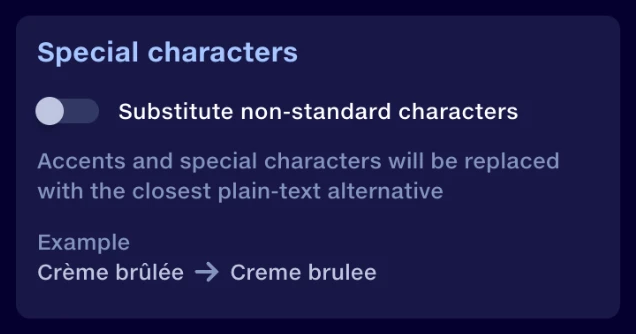
Substitute non-standard characters replaces accented Latin letters, and other supported Latin letter forms, with their closest plain-text alternative.
- Substitutions aren’t specific to any one language. For example,
übecomesu, notue. - Some characters become two letters:
æbecomesae,œbecomesoeandßbecomesss. - Not every symbol or writing system can be converted.
Examples
Input | Output |
|---|---|
Crème brûlée | Creme brulee |
Müller | Muller |
Straße | Strasse |
Punctuation
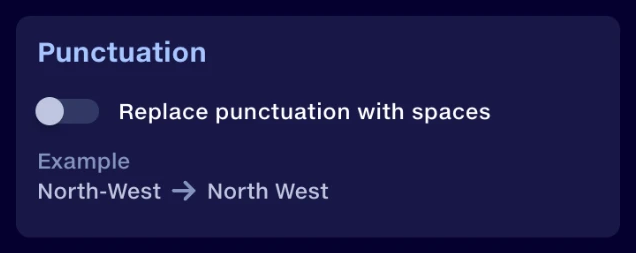
Replace punctuation with spaces replaces punctuation and symbols with spaces. Underscores are kept.
This can leave repeated spaces, or spaces at the start or end of a value. Turn on Collapse repeated whitespace and Trim leading/trailing whitespace to remove them.
Examples
Input | Output |
|---|---|
North-West | North West |
Smith & Sons | Smith Sons |
Policy_ref/2024 | Policy_ref 2024 |
Alphanumerics
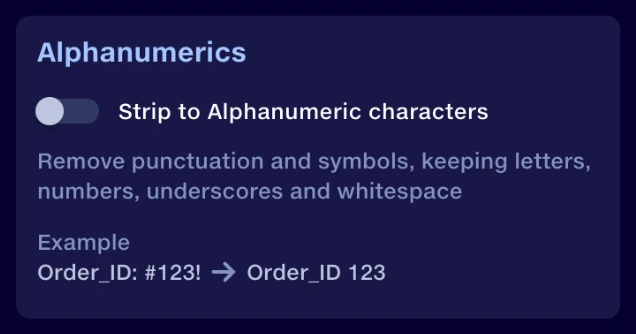
Strip to Alphanumeric characters removes every character except the letters A–Z and a–z, the digits 0–9, underscores and whitespace.
- Accented letters are removed too. To keep them as plain letters, also turn on Substitute non-standard characters, which runs first.
- Removing punctuation can join words or numbers together. To keep them apart, also turn on Replace punctuation with spaces, which runs first.
Examples
Input | Output |
|---|---|
Order_ID: #123! | Order_ID 123 |
Crème | Crme |
North-West | NorthWest |
25.50 | 2550 |
The last three examples have Substitute non-standard characters and Replace punctuation with spaces turned off.
Whitespace
Three actions tidy up spaces, tabs and line breaks. They run in the order shown.
Remove whitespace between initials

Removes whitespace between single letters that sit next to each other, in upper or lower case. Tabs and line breaks between them are removed too.
- Single digits are not joined.
- It looks for single letters, not names, so ordinary one-letter words can be joined too.
- With Replace punctuation with spaces turned on, initials with full stops can be joined as well, as in the example above.
Examples
Input | Output |
|---|---|
J R R Tolkien | JRR Tolkien |
a b smith | ab smith |
Type A B | Type AB |
Room 1 2 | Room 1 2 |
Collapse repeated whitespace

Replaces each run of whitespace with a single ordinary space. Single tabs and line breaks become spaces too.
Examples
Input | Output |
|---|---|
North West | North West |
Smith Sons | Smith Sons |
Trim leading/trailing whitespace
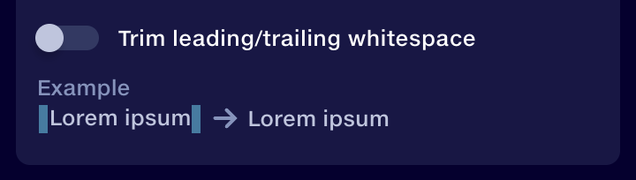
Removes whitespace from the start and end of each value. Whitespace inside the value is left as it is.
Examples
Input | Output |
|---|---|
North West | North West |
Claim 42 | Claim 42 |
North West | North West |
Case
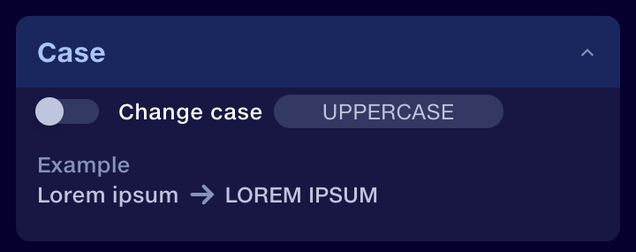
Change case converts text to the case you select: lowercase, Sentence case, Title Case or UPPERCASE.
Examples
Case |
Input |
Output |
|---|---|---|
lowercase |
Lorem Ipsum |
lorem ipsum |
Sentence case |
lorem ipsum |
Lorem ipsum |
Title Case |
lorem ipsum |
Lorem Ipsum |
UPPERCASE |
Lorem ipsum |
LOREM IPSUM |