

Getting started
User profile and organisation
User profile popup
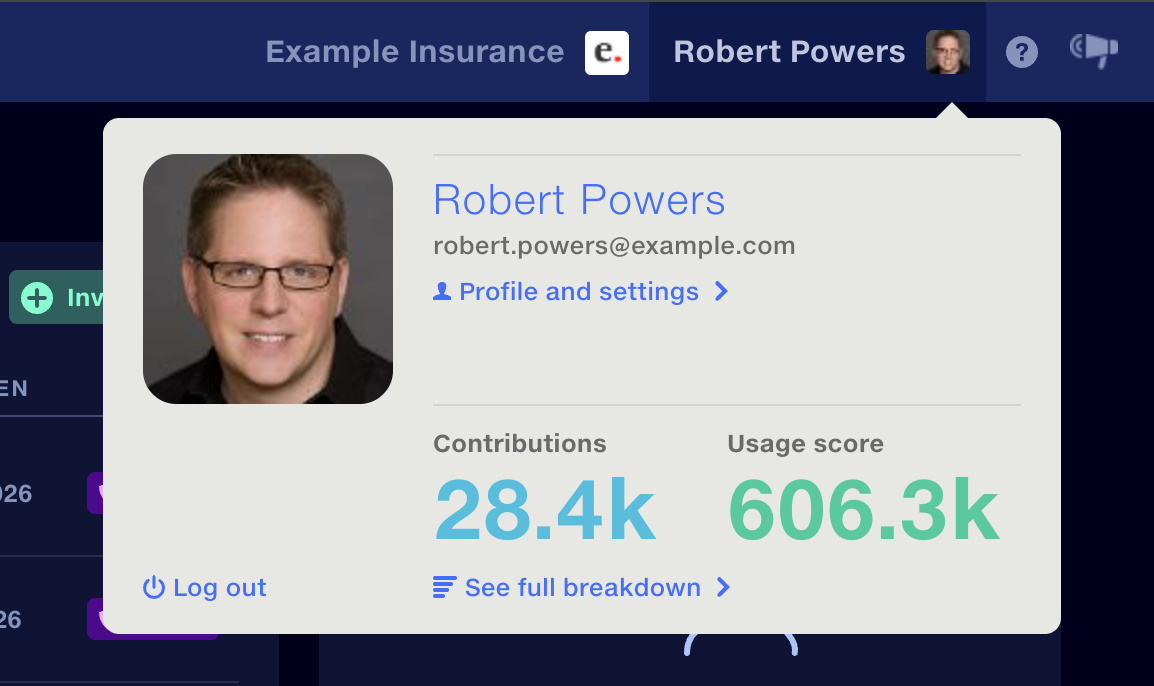
Click your name in the navigation bar to open the user profile popup. It shows your name, registered
email and photo, along with your contributions and usage score.
Your profile is visible to other members of your organisation.
Add or change your photo
- Hover over the photo placeholder. Click to edit.
- Drag and drop a JPEG or PNG file, or choose a file.
- Crop the picture if desired.
To change or remove your photo, repeat the steps above.
Contributions and usage score
Your user profile shows your contributions and usage score.
- Contributions is the total number of contributions you have made across Quantemplate, in six categories.
- Usage score is the number of times your contributions have been used across your organisation – or, if you have opted in, across the wider network – over the last 12 months.
Other users can see your contributions and usage score, giving you recognition for your work. Admins can also see your usage trend over time, giving them insight into the value you create on the platform. See Admin dashboard.
See your full breakdown
Click See full breakdown in the user profile popup to see which areas you have contributed to.
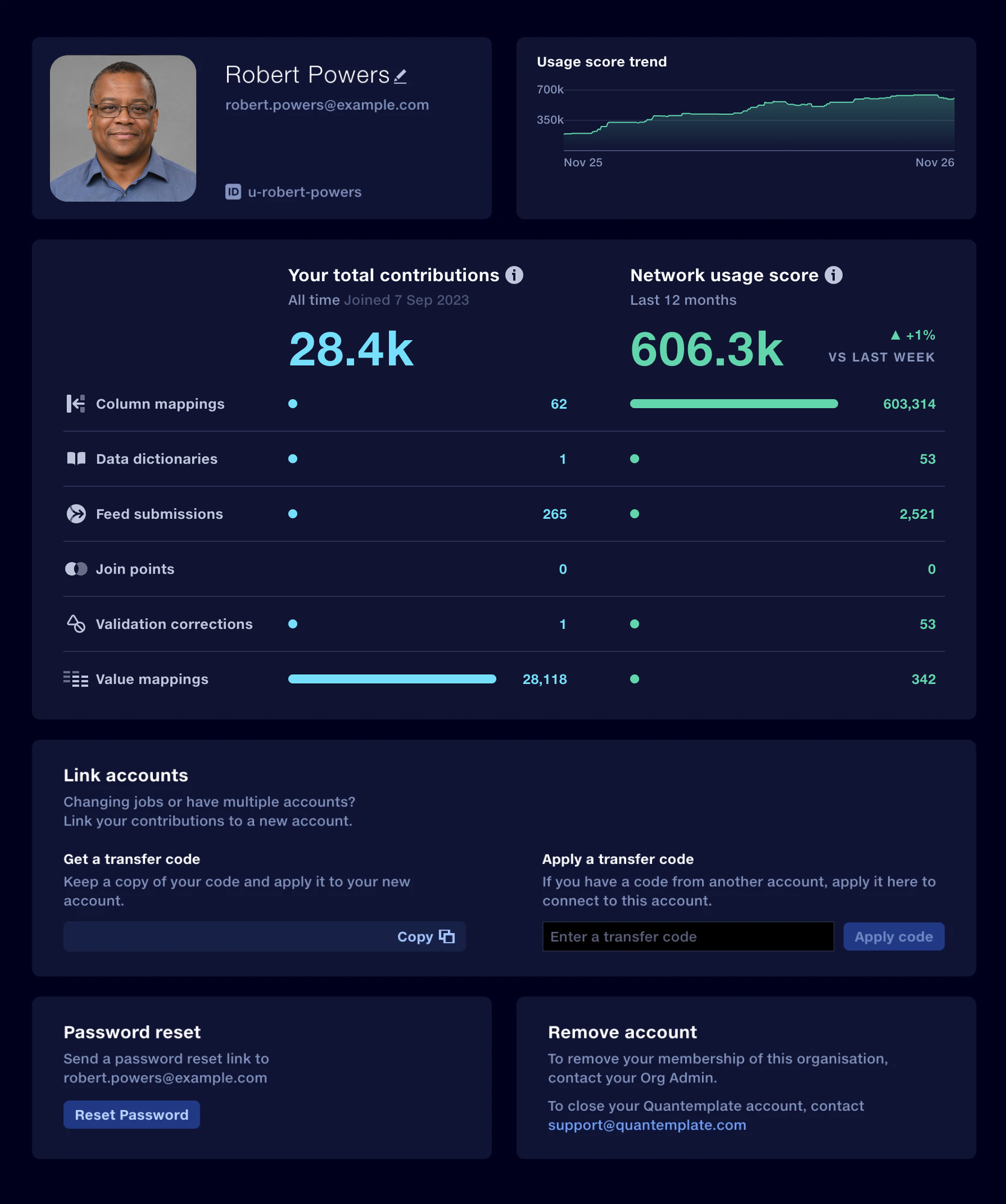
- Column mappings – source column headers you have mapped to a master schema.
- Data dictionaries – datasets that define the master schema for your column mappings.
- Feed submissions – data you have submitted to a feed.
- Join points – columns you have matched to combine two datasets in a Join stage.
- Validation corrections – corrections you have applied to failed values in a validation report.
- Value mappings – column entries you have mapped to a desired value, such as a standard company name.
View your contribution history
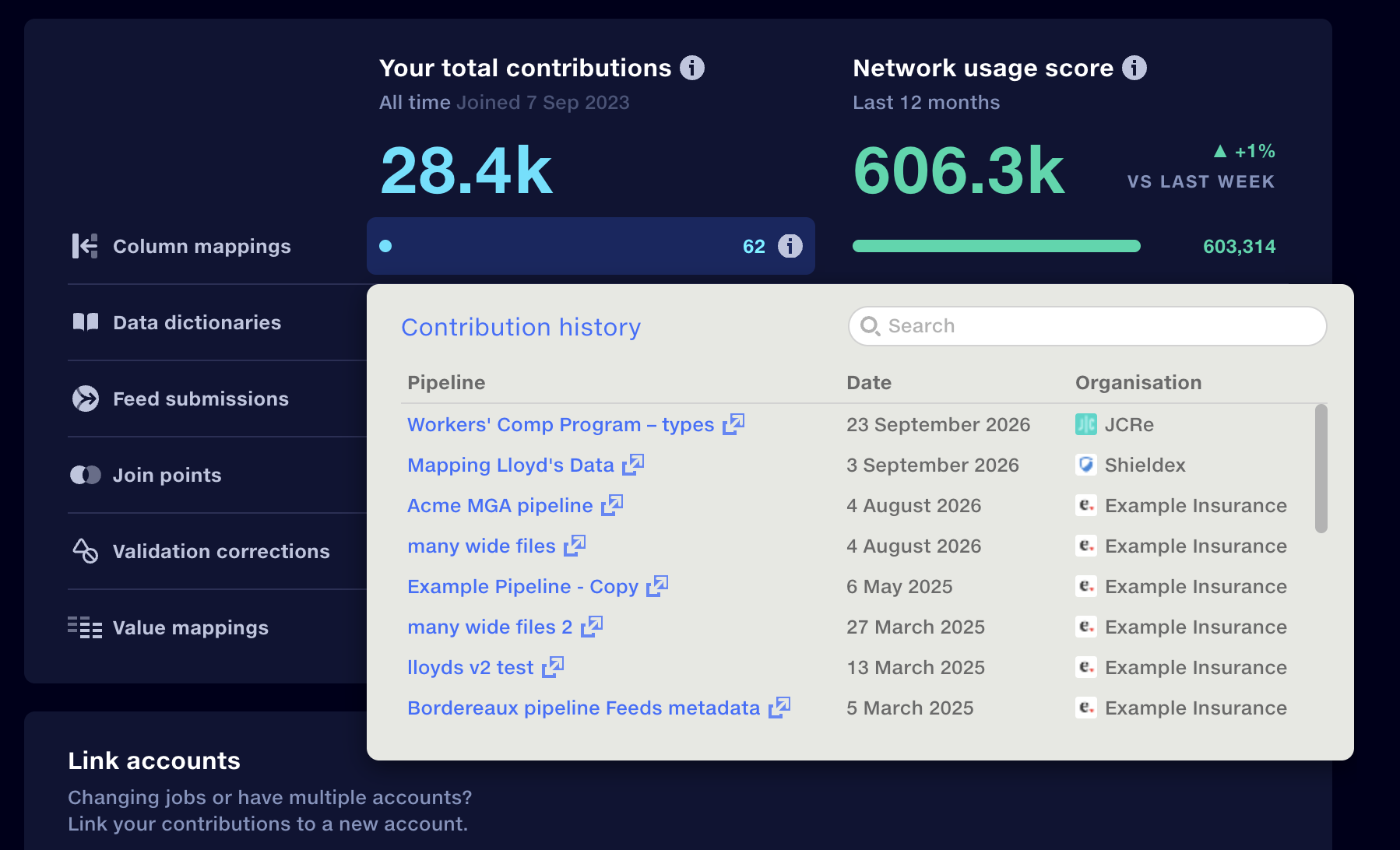
Click a contribution item to see where your contributions have been made. The contribution history links to the pipelines, feeds or datasets involved, and shows the date and the organisation for each contribution.
Linking accounts
You may use different email addresses to log in to Quantemplate for different organisations – for example, if you are an implementation partner working across multiple accounts. Link your accounts to carry your contributions and usage score across.
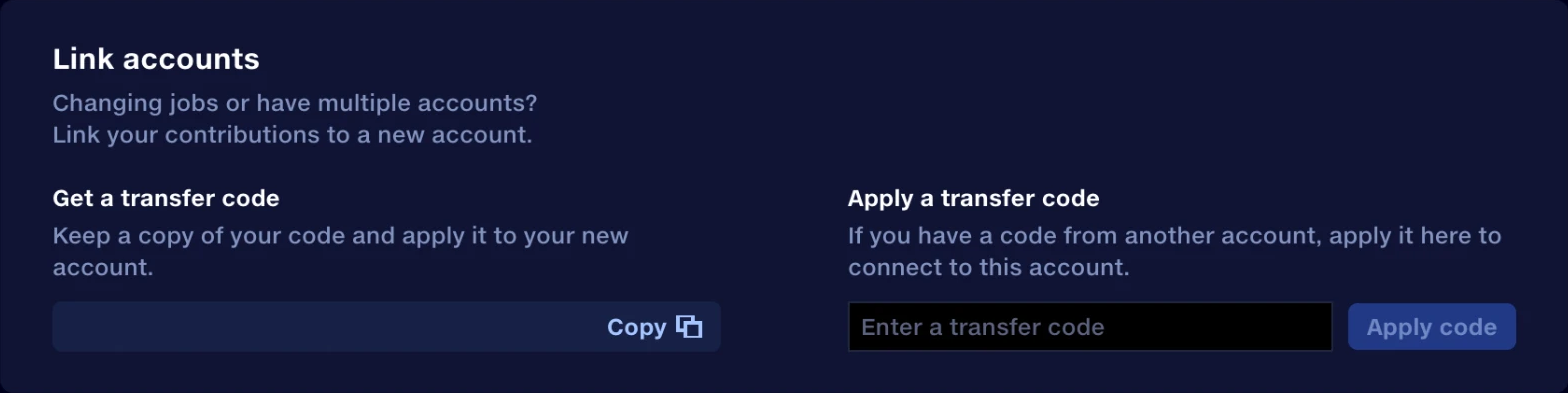
- In the account you want to link from, click Profile and settings in the user profile popup.
- Under Get a transfer code, click Copy.
- Log in to your other account and go to Profile and settings.
- Under Apply a transfer code, paste the code and click Apply code.
Your scores will then be synchronised.
If you are changing jobs, follow the same steps to take your usage score with you, applying the code in your new account.
Password reset
To reset your password, click Profile and settings in the user profile popup, then click Reset Password. A password reset link will be sent to your registered email address.
See Admins and switch organisation

Organisation Admins
Organisation Admins manage users in your organisation. Click on the organisation name in the navigation bar to see your organisation’s Admins. Click on an Admin’s name to send them an email. Take a note of who they are – you may need to contact them if you lose access to your account.
Switch organisations
If you’re a member of multiple organisations on Quantemplate, to switch between them, click on the current organisation name in the main navigation bar. In the organisation popup that appears, select the organisation you wish to switch to.